SPEECH & INPUT
Scam With Your Friends Microphone Not Working
Separate microphone input, speech recognition, and player chat before changing settings.
Check whether your speech produces the right text. No input, missing transcription, and an AI caller that will not reply are different problems.
Identify where speech stops
Start with one short sentence to an AI caller and watch the phone’s captured text. Then compare your result with the table.
- Friends cannot hear you
- Check player voice chat and its input device; this is separate from AI recognition.
- No words appear in the phone
- Test microphone input, then the recognition mode.
- Words appear incorrectly
- Check the spoken language and recognition provider.
- Your words are correct, but no reply arrives
- Move to AI connection troubleshooting.
- Caller reply text appears without audio
- Check caller voice generation and playback, not microphone capture.
Test input before changing providers
- Check the device. Make sure the intended microphone is selected in the game and works in Windows input settings. Confirm the game can access it and that a headset’s hardware mute is off.
- Test a short phrase. Keep background audio low and inspect the captured words. Correct text is the useful result, rather than microphone activity alone.
- If you changed devices: reselect the current microphone. The official update addresses unplugged headsets, Windows audio changes and device-list refreshes; apply updates before reporting the same behavior.
- Try typed dialogue. If typing gets a normal caller reply, concentrate on input and recognition. If typing also fails, continue with AI connection checks.
Change one setting at a time and repeat the same phrase so you can tell which change helped.
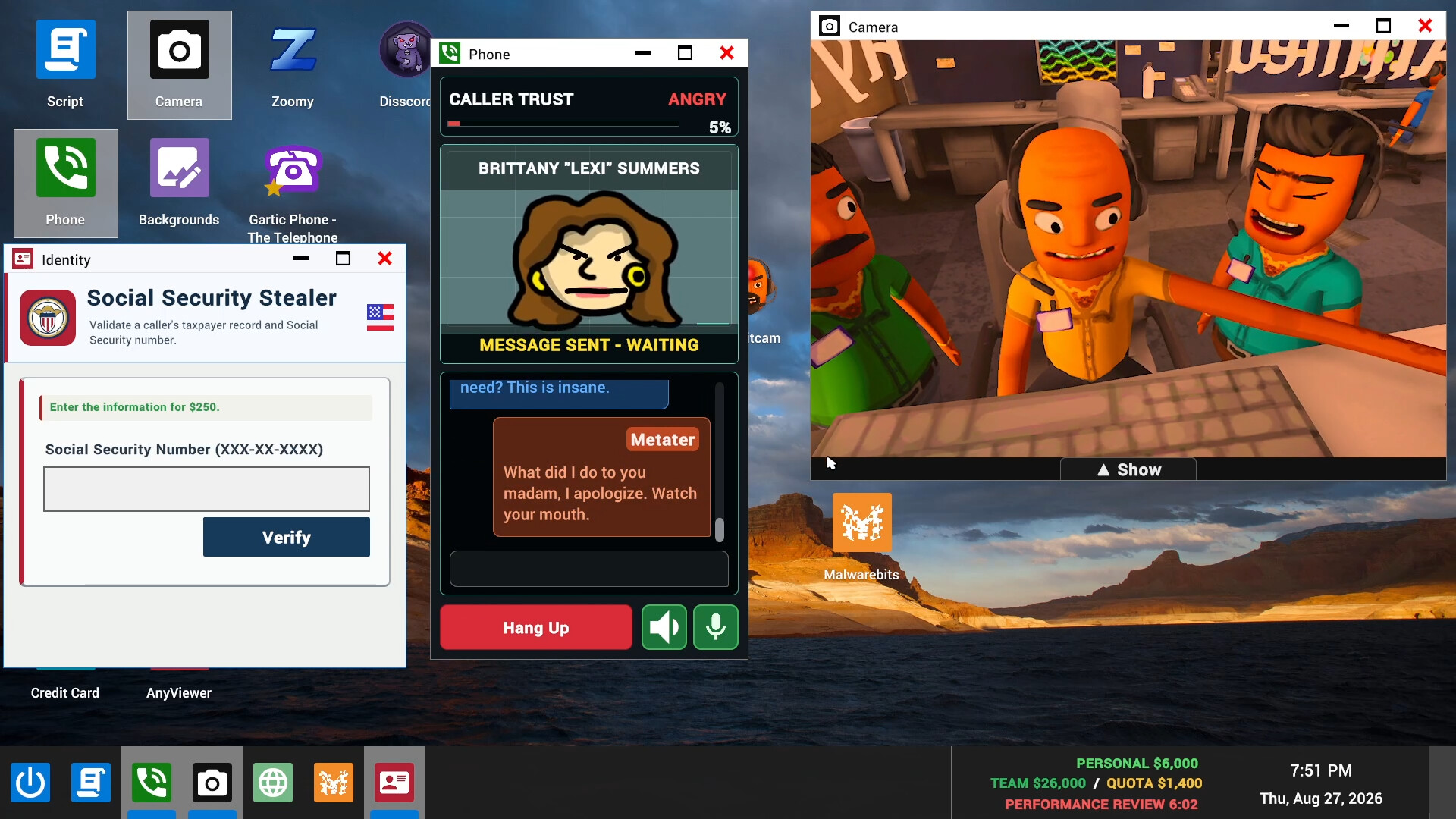
Choose the matching recognition mode
Updates 0.1.78 and 0.1.82 document a dedicated Speech settings tab. Check the call language there, then the recognition provider.
- Moonshine (6 languages)
- Local recognition for English, Arabic, German, Japanese, Mandarin Chinese and Spanish; the language packs are bundled.
- Whisper
- Local recognition for other languages, with hardware compatibility and timeout handling described in the update.
- Deepgram
- Optional online recognition using your own account and API key; it sends audio to Deepgram and can incur charges.
For a supported Moonshine language, selecting Moonshine (6 languages) is a documented alternative when Whisper fails. Update 0.1.82 also adds automatic session fallback for supported languages and 15-second limits for stalled Whisper startup or recognition. That fallback does not change the saved provider preference.
If text is consistently wrong, check the language before increasing microphone gain. The Speech tab includes automatic microphone leveling; a louder signal does not correct a language mismatch. A missing or rejected Deepgram key needs a key correction or another recognition mode.
Separate recognition from caller voices
Qwen3 TTS generates the caller’s voice. It does not transcribe your microphone. A Qwen download or compatibility warning therefore belongs to voice output, even if it appears before a session starts.
The official notes describe fixes for older Windows processors and a separate compatibility path for Windows ARM/Snapdragon PCs. They do not make every optional voice feature available on every PC. If recognition cannot run, use typed phone dialogue while checking the warning for your setup.
For optional online recognition, review service costs and audio privacy before entering a personal key.
Decide what to do next
If your words now appear correctly, leave microphone settings alone and use AI troubleshooting for missing replies or caller sound. For a persistent recognition issue, report your game version, microphone model, Windows/CPU details, spoken language, selected provider, exact warning and whether typing works. Keep API keys out of screenshots.
CHECK THE ORIGINALS
Sources & version notes
Checked October 21, 2026. Official notes describe behavior at their publication date. Early Access updates may change it.