DESKTOP APPS
Scam With Your Friends Desktop Apps & Remote Access
Match the phone, AnyViewer and other desktop tools to the job you are doing, then check task results, recordings and app behavior.
The in-game desktop combines phone conversations, remote access and task tools. Use the current scenario’s instructions to choose an app; opening a tool or getting a verbal agreement does not by itself confirm payment.
Desktop app reference
The phone handles the conversation; the task’s desktop window handles the action. Keep those two parts in view when a fictional caller agrees but the workday’s earnings do not change.
Steam names remote computer access, Paint, a screen recorder and a camera. Official updates also name AnyViewer, PrivateMail and Malwarebits. This reference covers those documented tools rather than treating every icon in a promotional image as a fully documented app.
| Tool | Role | Useful check |
|---|---|---|
| Phone | Speak or type to fictional AI callers and read the conversation. | Check the captured text before diagnosing the task app. A correct transcript without a reply points to the AI connection. |
| AnyViewer | The in-game remote-access tool named in the restored Password Recovery instructions. | Use the information requested by the current task. Opening a remote window does not itself finish the scenario. |
| Paint, Camera & Screen Recorder | Additional desktop tools listed in the official Steam feature description. | Use a tool when the scenario asks for it. The store description does not establish one mandatory use for every task. |
| PrivateMail & browser | In-game information and browsing features mentioned in official updates. | Family Friendly mode can replace private photos and block the browser. That setting can explain missing content. |
| Malwarebits | An in-game virus-removal tool mentioned in 0.1.82. | The Remove virus action applies to instant-cleanup editions. The notes do not say every edition has that action. |
The Phone and AnyViewer here are part of the fictional game desktop. This guide does not require installing a separate Windows remote-access utility.
AnyViewer and remote access
In 0.1.78, Password Recovery returned with instructions to obtain the required information through AnyViewer. The later 0.1.82 notes improve those instructions again. This is a task-specific use of remote access, not a rule that every call must follow the same sequence.
- Read the active scenario and identify the information or action it requests.
- Keep the conversation visible enough to compare the caller’s response with the task.
- Use the in-game remote tool when that scenario directs you to the fictional computer.
- Return to the matching task window for any required submission or confirmation.
- Check completion and credited earnings before starting another task.
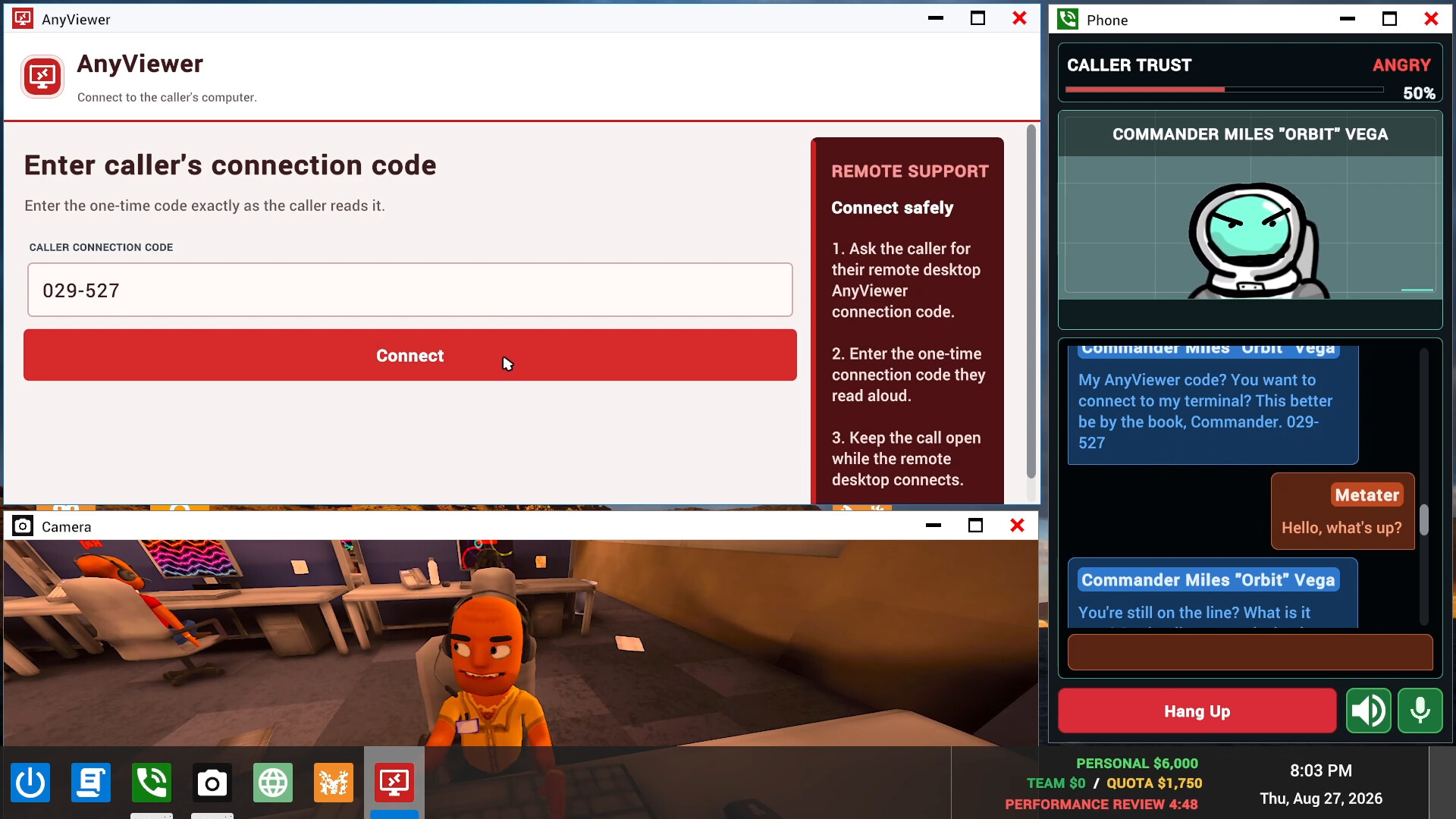
The image is official promotional media showing AnyViewer beside a call. It is not a tested sequence of settings screens. For a first run, use the beginner walkthrough alongside the task’s current instructions.
Match an app to a task
Different scenarios have different final actions. Bitcoin and Meme Coin use a cash-out step; Investment Scam uses an invoice number; Police Impersonation uses a fine-payment confirmation number. Lottery Prize requires the ticket code and all three scratch results. The task completion table gives the version notes and the next check for each.
Do not carry the settlement rule from one scenario into another. In particular, an investment invoice and a live coin-investment round are different tasks even though both involve an investment.
For ownership that should survive a restart, 0.1.83 adds Steam Cloud support for permanent app purchases and improves saving desktop layouts, browser shortcuts and app ownership. It imports the previous v82 settings, purchases and checkpoints. Microphone, graphics, controls and personal API-key settings remain local to each computer. A missing local device setting is therefore a different issue from a missing permanent app purchase.
Recordings and browser controls
The desktop’s Screen Recorder and the game’s call-saving behavior should not be assumed to be the same control. The publisher says call recordings and transcripts are saved locally by default. Disable Call Saving, added in 0.1.78, stops keeping new permanent video clips while still allowing temporary recordings for boss reviews. See the recording and privacy guide for the documented file location and controls.
If the in-game browser will not open, check whether Family Friendly mode is enabled: 0.1.82 explicitly makes that mode block browsing. The same update replaces private caller photos in PrivateMail and AnyViewer with a placeholder. Turning a filter off is a player preference; a placeholder alone does not establish a failed download.
If an app does not work
- Wrong or missing words: start with microphone and speech recognition.
- Correct words but no caller reply: check AI connection messages before changing the task app.
- The caller agrees but no earnings appear: check the scenario’s final action.
- A custom caller is missing or its voice will not import: use the Mods and Workshop checks.
- An app purchase is missing after restarting: check permanent purchases and Steam Cloud before repeating a purchase.
- Viruses or popups interfere with the desktop: check the Malwarebits cleanup action and laptop exception.
These checks organize the published information. We have not measured app behavior in a hands-on playtest, and the sources do not provide a complete catalog of app prices, unlock days or exact button paths.
CHECK THE ORIGINALS
Sources & version notes
Checked October 22, 2026. Official notes describe behavior at their publication date. Early Access updates may change it.